nora Beta guide
Private beta · Setup guide

Welcome to the Nora beta.

Everything you need to set up Nora, step by step. This takes about 20 minutes. Grab your phone, your loved one's phone, and a cup of coffee.

  • About 20 minutes
  • Two iPhones · iOS 16+
  • Via Apple TestFlight
Before you start

What to expect.

Setup happens in two parts, in order.

  • Part one · Your phone

    You set yourself up first

    About 5 minutes, solo. Install Nora, create your account, send the invite.

  • Part two · Their phone

    Then you set up your loved one's phone

    10 to 15 minutes, together — in person or on FaceTime.

You'll need both iPhones, and your loved one may need their Apple ID password.

If anything goes wrong, email jeremy@hellonora.io.

Section 1Your phone

Install TestFlight, then Nora.

What is TestFlight?

Apple's free app for trying apps before they're released. You'll use it to install Nora.

Already have TestFlight? Open it and start at step 6.

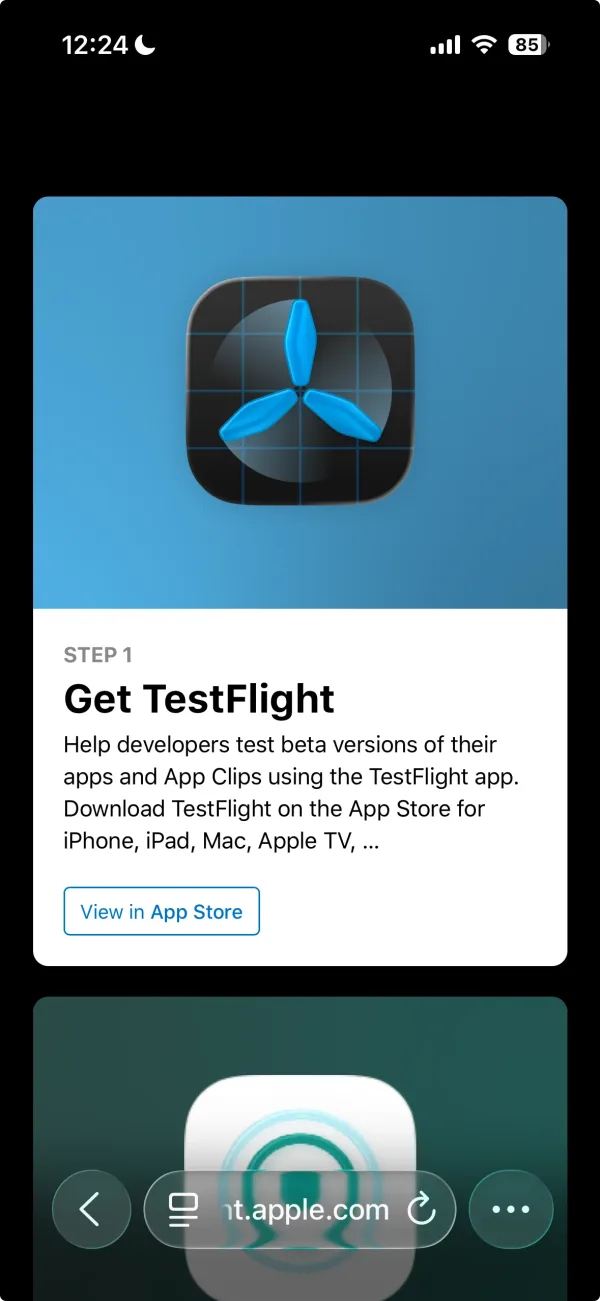
  1. On your iPhone, open the beta email and tap the “Install TestFlight” link. It opens testflight.apple.com.
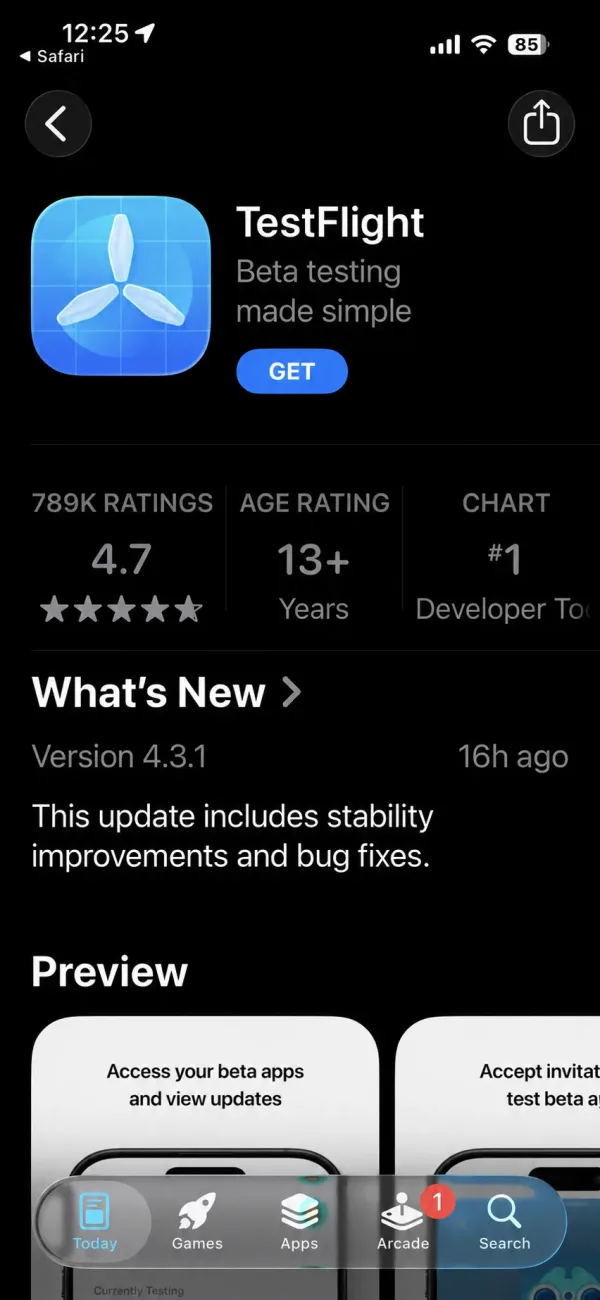
  2. Tap “View in App Store”. The App Store opens on TestFlight — a blue circle with a propeller.
  3. Tap “Get” and wait for it to install.
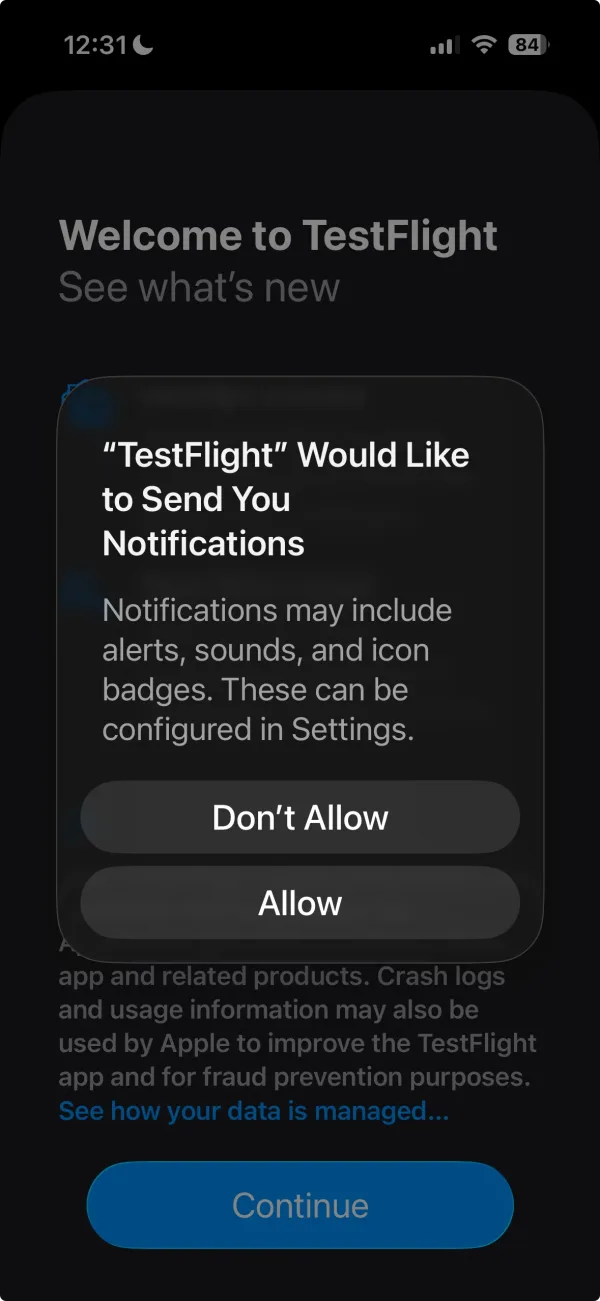
  4. Open TestFlight. It asks to send notifications. Allow or Don't Allow — either works for Nora.
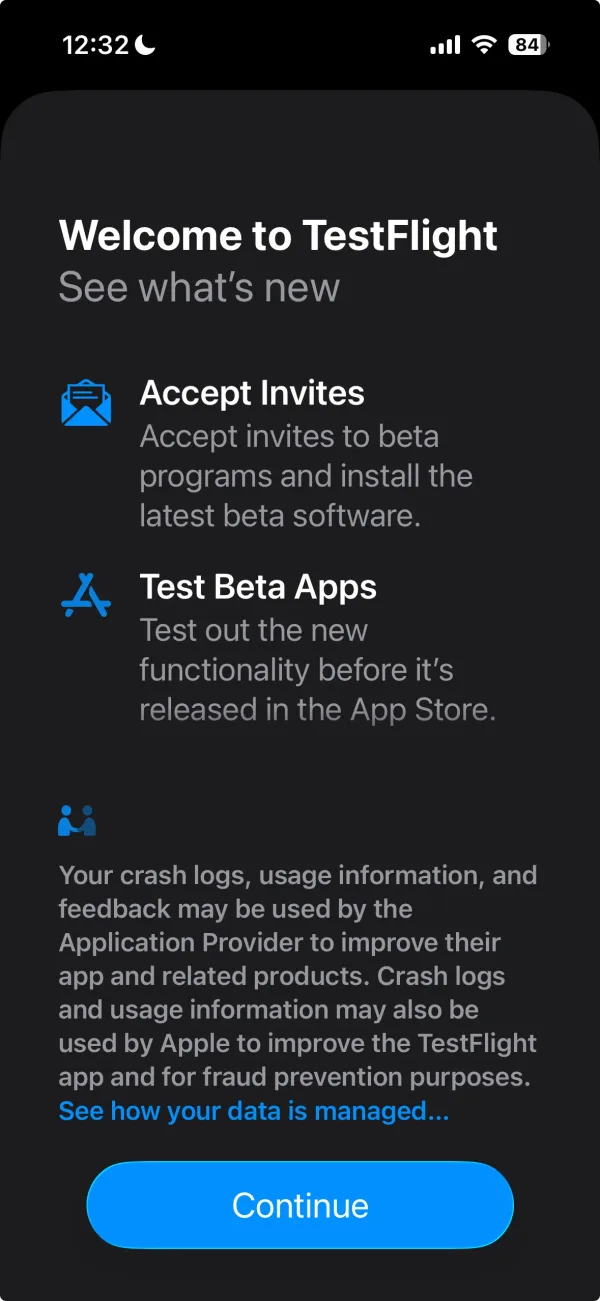
  5. Tap “Continue”, then accept Apple's terms if asked.
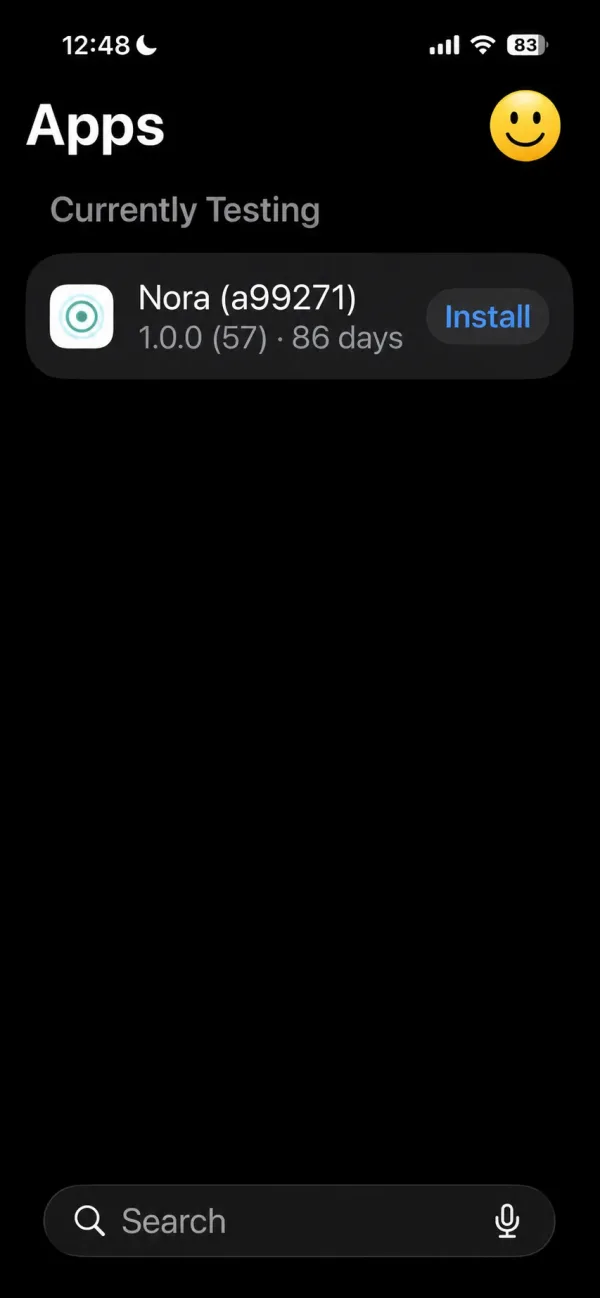
  6. In TestFlight, Nora is waiting. Tap “Accept”.
  7. Tap “Install”.
  8. When it finishes, tap “Open”.
The testflight.apple.com page shown after tapping the link in the beta email.
testflight.apple.com · from the email link
The App Store page for TestFlight, with the Get button.
App Store · TestFlight with the “Get” button
TestFlight asking permission to send notifications.
TestFlight's notification prompt
The TestFlight welcome screen with the Continue button.
TestFlight welcome · “Continue”
TestFlight showing Nora with the Install button after accepting the invite.
TestFlight · “Install” after accepting

Tap any screenshot to see it full size.

Don't see Nora? Tap the link in your beta email again. See “This beta is full” or “Link expired”? Email jeremy@hellonora.io for a new invite.
Section 2Your phone

Create your account.

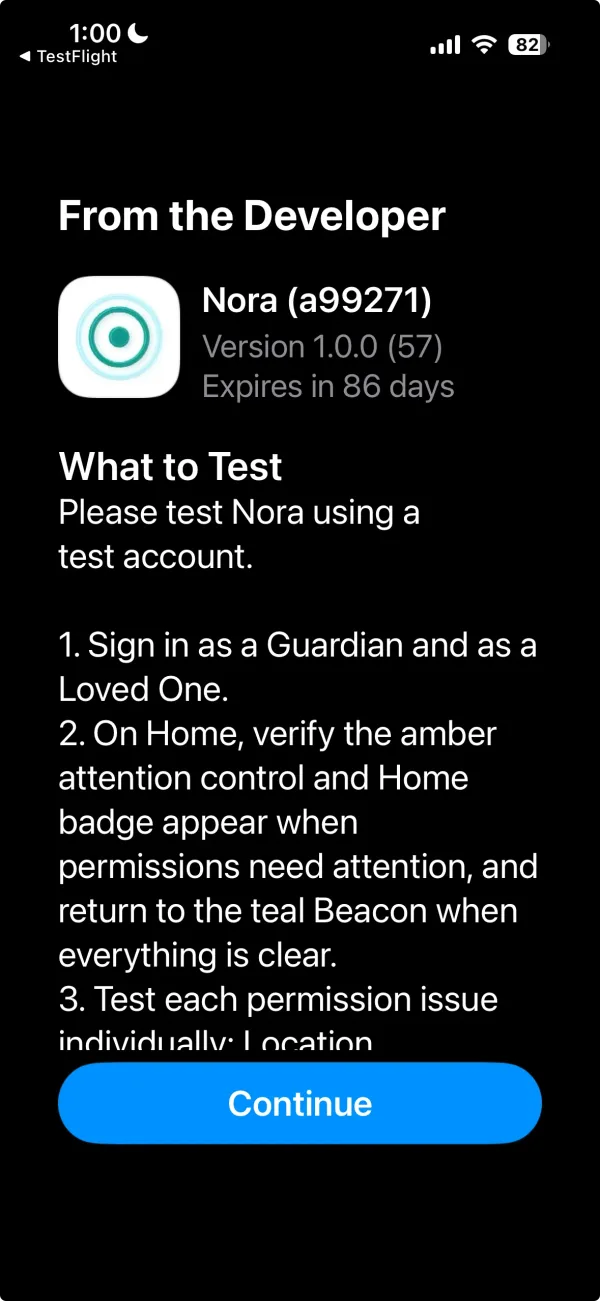
  1. TestFlight shows a “From the Developer” screen. Tap “Continue” twice.
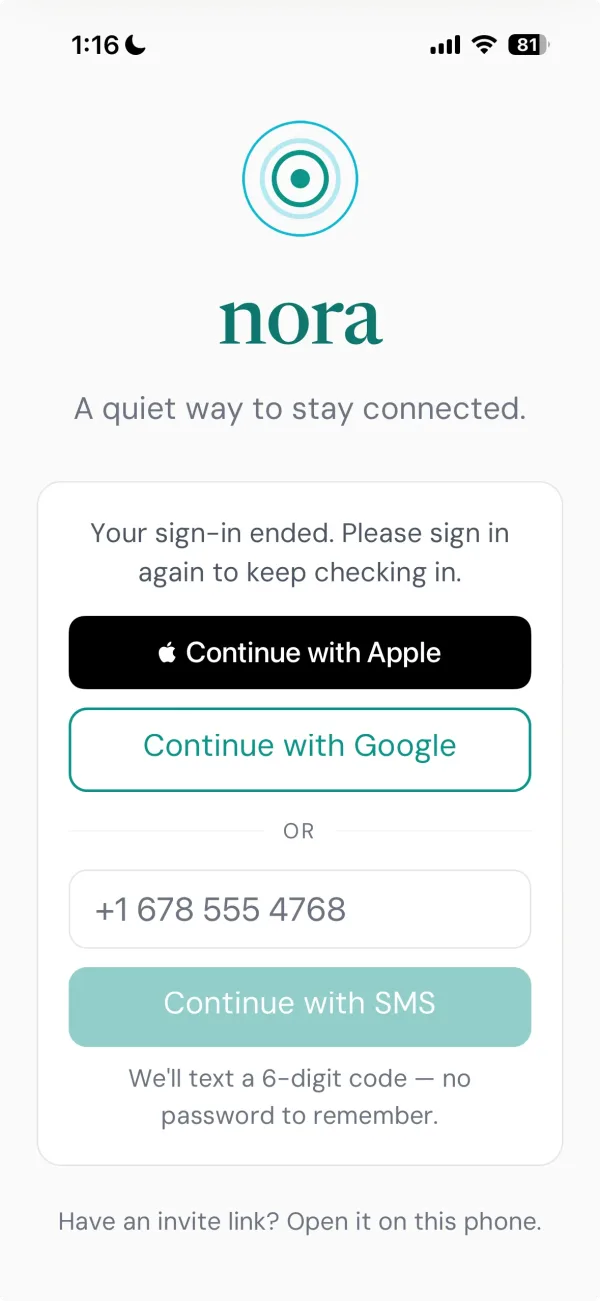
  2. Nora opens. Sign in with Apple, Google, or your phone number.
  3. If you used your phone number, enter the 6-digit code that arrives by text.
The TestFlight From the Developer screen listing what's new in this build.
TestFlight “From the Developer” · Continue, twice
Nora's sign-in screen with a phone number field and Apple and Google buttons.
Nora sign-in · phone number, Apple, Google
Section 3Your phone

Answer a few questions.

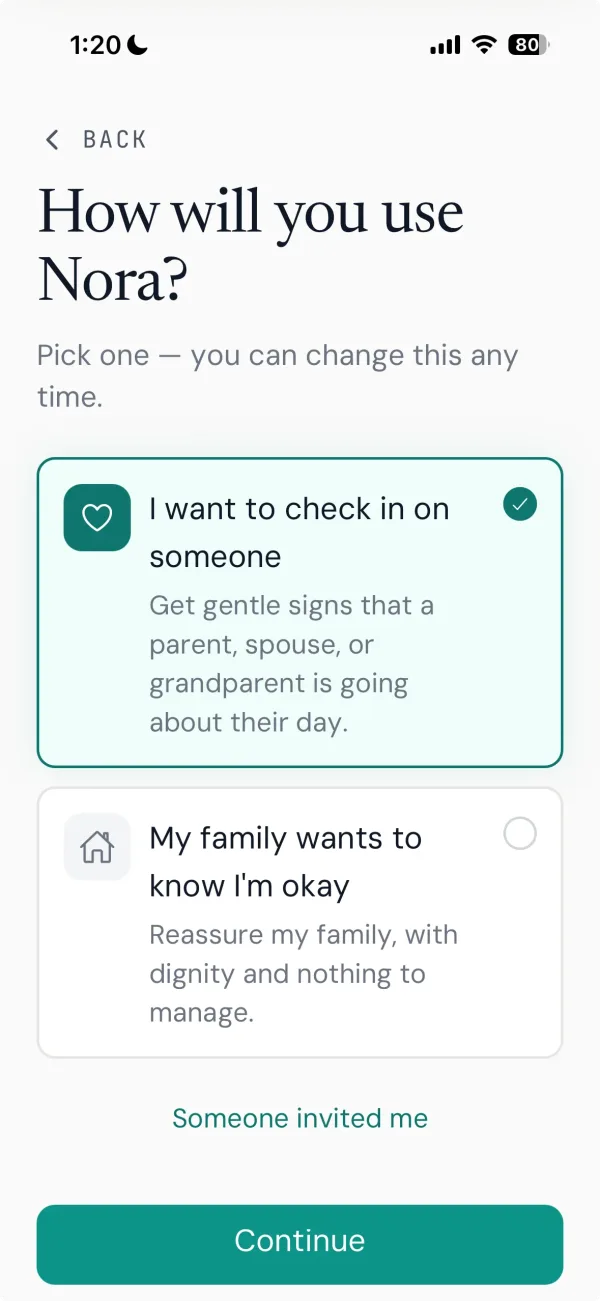
  1. Tap “I want to check in on someone”.
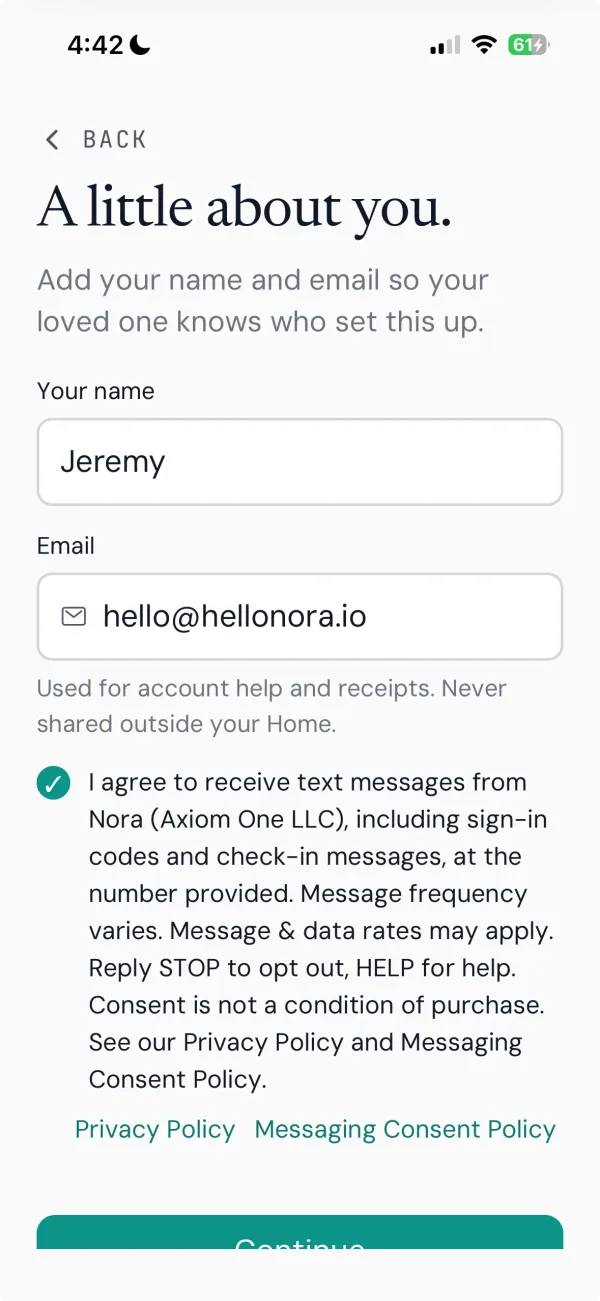
  2. Enter your first name and contact information. This is how your loved one sees you.
  3. Read the three states — “All okay”, “No activity yet”, “Needs attention” — and tap Continue.
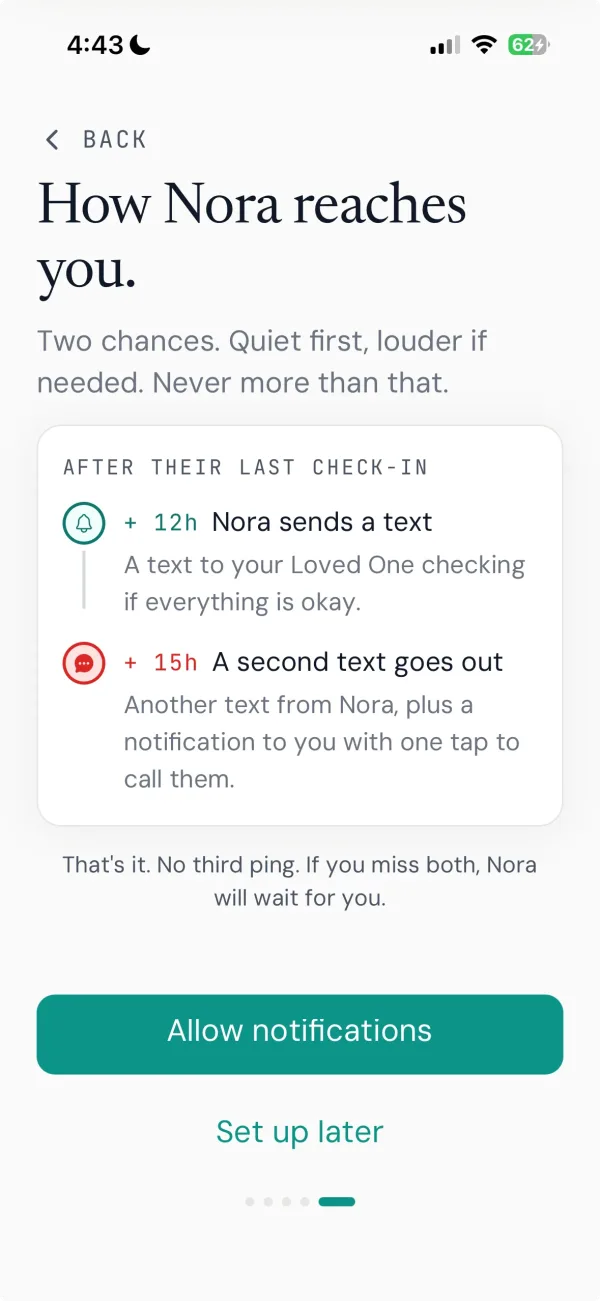
  4. Tap “Allow notifications”, then “Allow” on the iPhone prompt. This is how Nora reaches you if their phone goes quiet.
Nora asking whether you want to check in on someone or let family know you're okay.
Role selection · pick “check in on someone”
The profile screen where you enter your first name and contact information.
Your profile · name and contact info
Nora's notifications screen with the Allow notifications button.
Notifications · tap “Allow notifications”
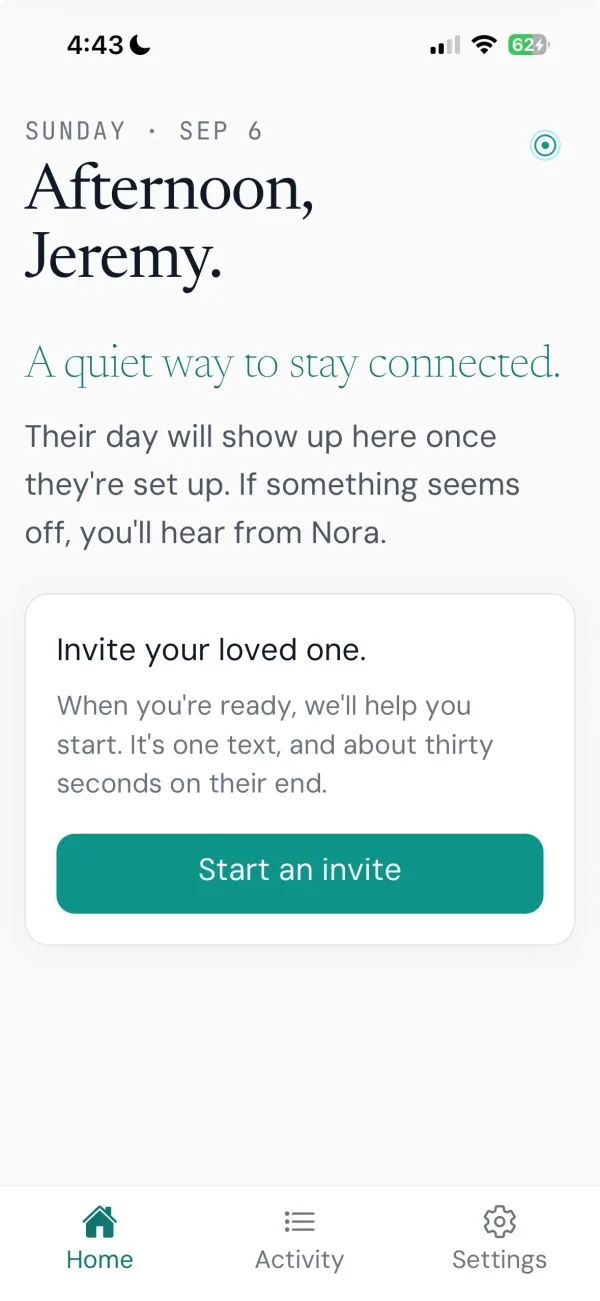
The Nora dashboard before anyone has been invited, showing the Start an invite button.
You're in. The dashboard is empty until you invite someone — that's normal
Section 4Your phone

Invite your loved one.

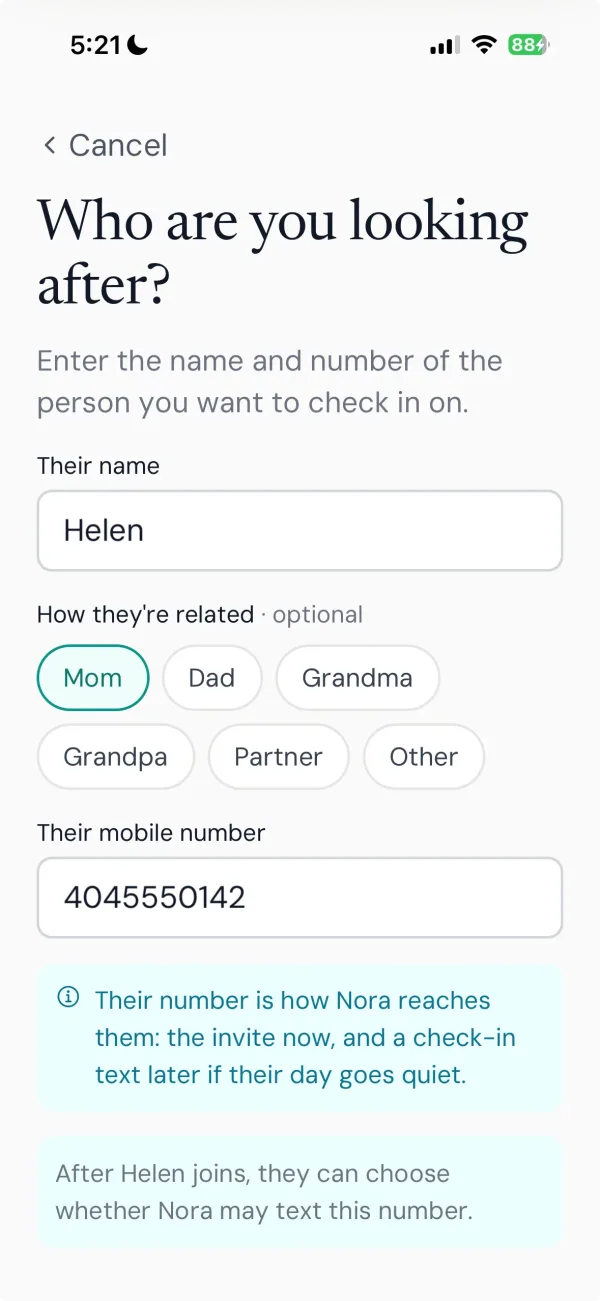
  1. On your Nora home screen, tap “Start an invite”.
  2. Enter their name, your relation to them, and their phone number.
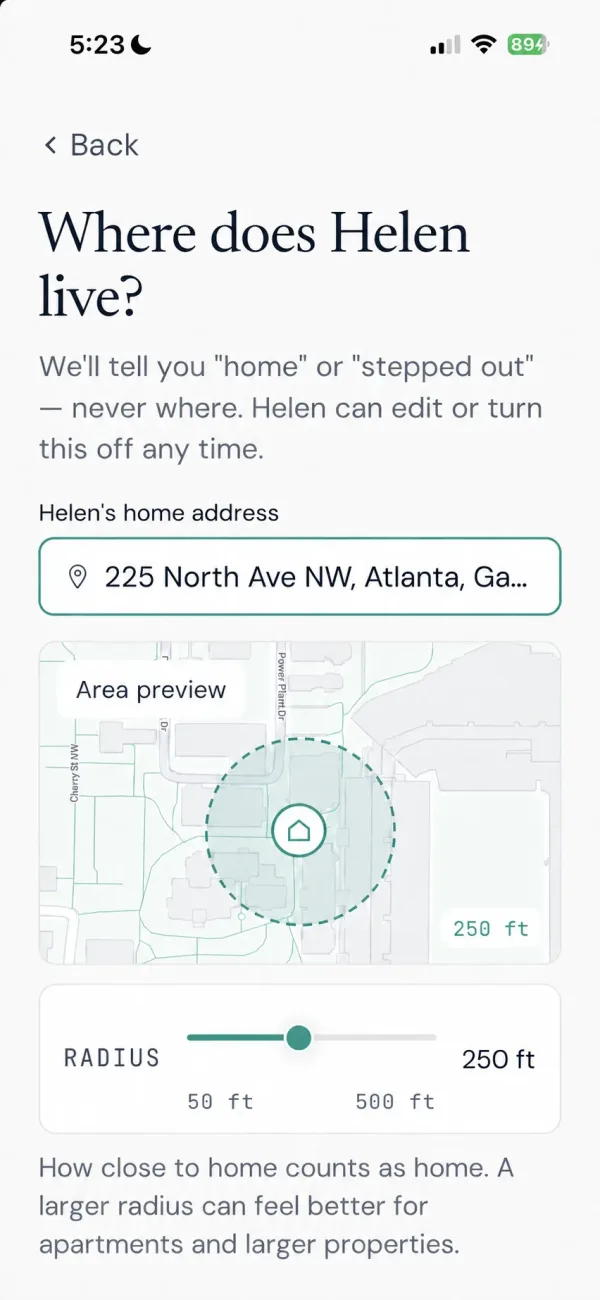
  3. Enter their home address and how far from it still counts as home. Nora only uses this to tell home from away.
  4. Local contact — someone nearby who can check on them if you can't. Optional; you can add this later.
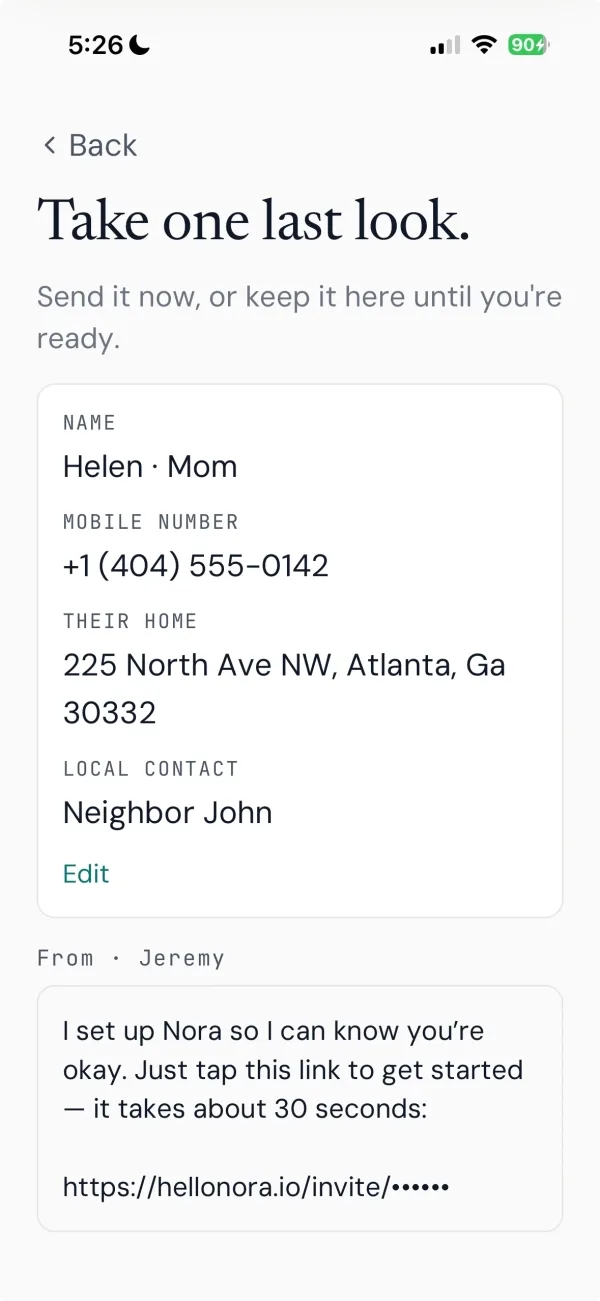
  5. Check what you entered, then tap Send. A text message opens, ready to send to your loved one.
The invite screen asking for your loved one's name, your relation, and their phone number.
Invite · name, relation, phone number
The invite screen asking for their home address and the radius that counts as home.
Invite · home address and radius
The invite review screen summarising everything entered, with a Send button.
Invite · review, then send

Send the text, but they don't need to tap it yet. First, TestFlight goes on their phone — next section.

Section 5Their phone

Install TestFlight, then Nora.

Same steps as before, on their iPhone.

  1. On their phone, open your text message and tap the link. It opens testflight.apple.com.
  2. Tap “View in App Store”. The App Store opens on TestFlight — a blue circle with a propeller.
  3. Tap “Get”. They may need their Apple ID password, Face ID, or Touch ID. Wait for it to install.
  4. Open TestFlight. It asks to send notifications. Allow or Don't Allow — either works for Nora.
  5. Tap “Continue”, then accept Apple's terms if asked.
  6. In TestFlight, Nora is waiting. Tap “Install”.
  7. When it finishes, tap “Open”.
The testflight.apple.com page opened from the invite text message.
testflight.apple.com · from the invite text
The App Store page for TestFlight on their phone, with the Get button.
App Store · TestFlight with the “Get” button
TestFlight asking permission to send notifications on their phone.
TestFlight's notification prompt
The TestFlight welcome screen with Continue, on their phone.
TestFlight welcome · “Continue”
TestFlight showing Nora with the Install button on their phone.
TestFlight · Nora with “Install”

Don't know the Apple ID password? See Troubleshooting. Don't see Nora in TestFlight? Tap the link in the text message again.

Section 6Their phone

Set up their phone.

The most important part. Nora asks for a few permissions here — say yes to each.

  1. Open your text message on their phone and tap the link again. Nora opens.
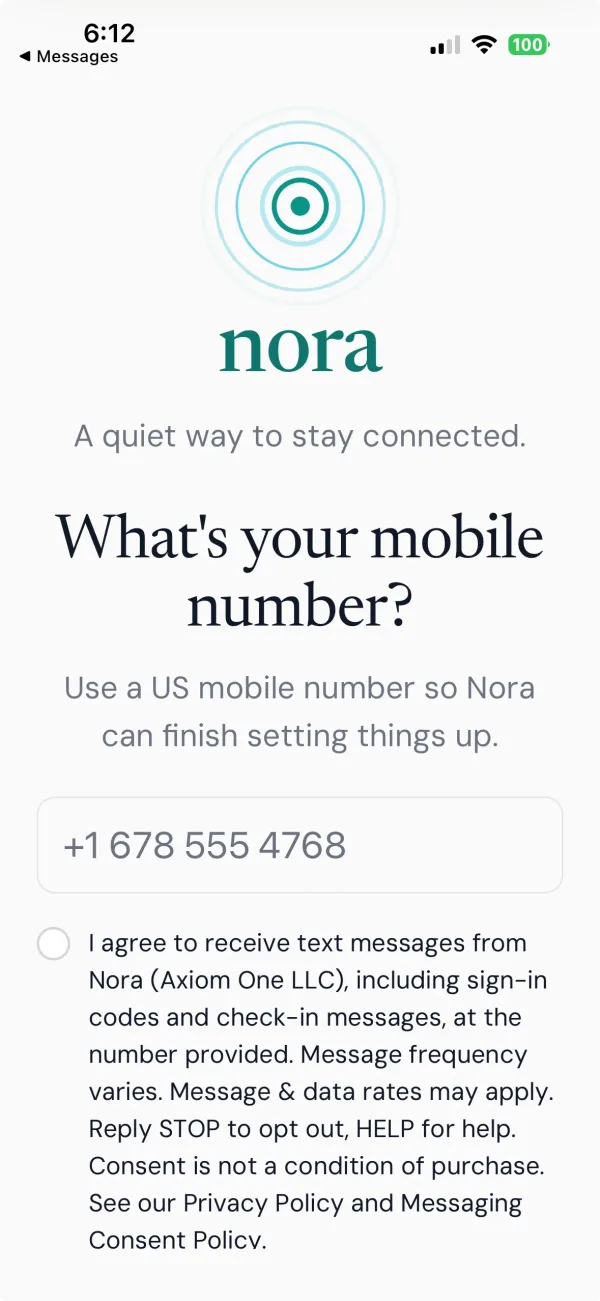
  2. Enter their phone number, agree to text messages, and tap Continue.
  3. Tap “Get started”.
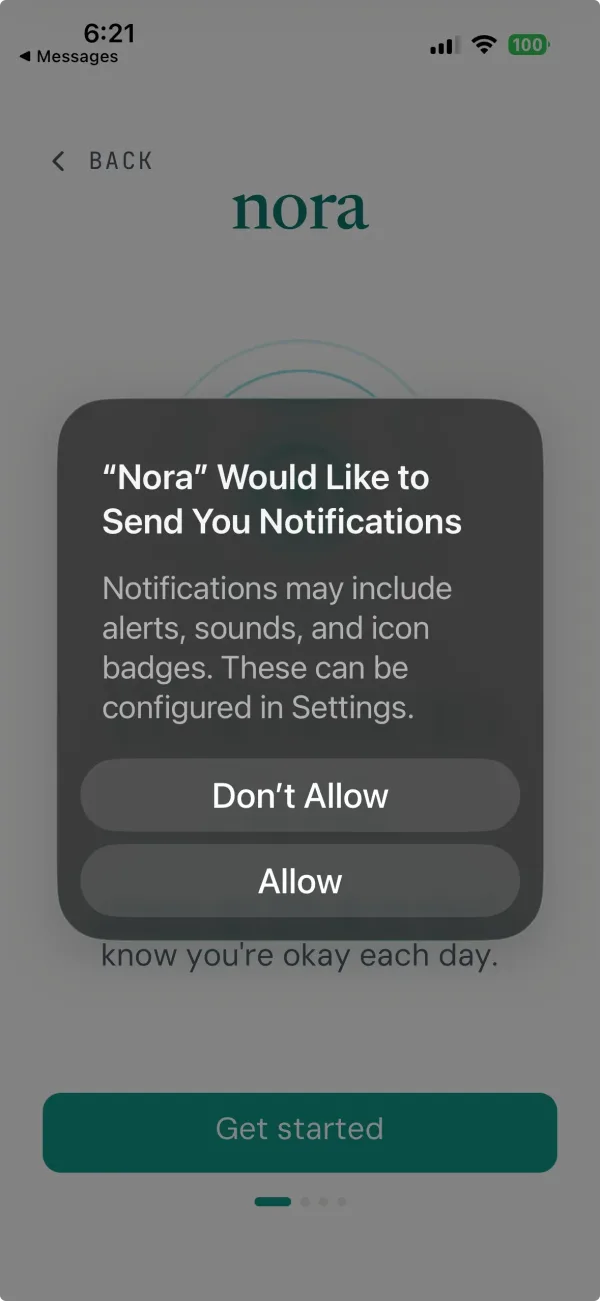
  4. Nora asks to send notifications. Tap “Allow”.
  5. Two short screens explain what Nora does and won't do. Read them together, tapping Continue on each.
The screen asking for your loved one's phone number and agreement to text messages.
Their phone number · agree to texts
Nora's Get started screen with the notification prompt on top.
Get started · then “Allow” notifications
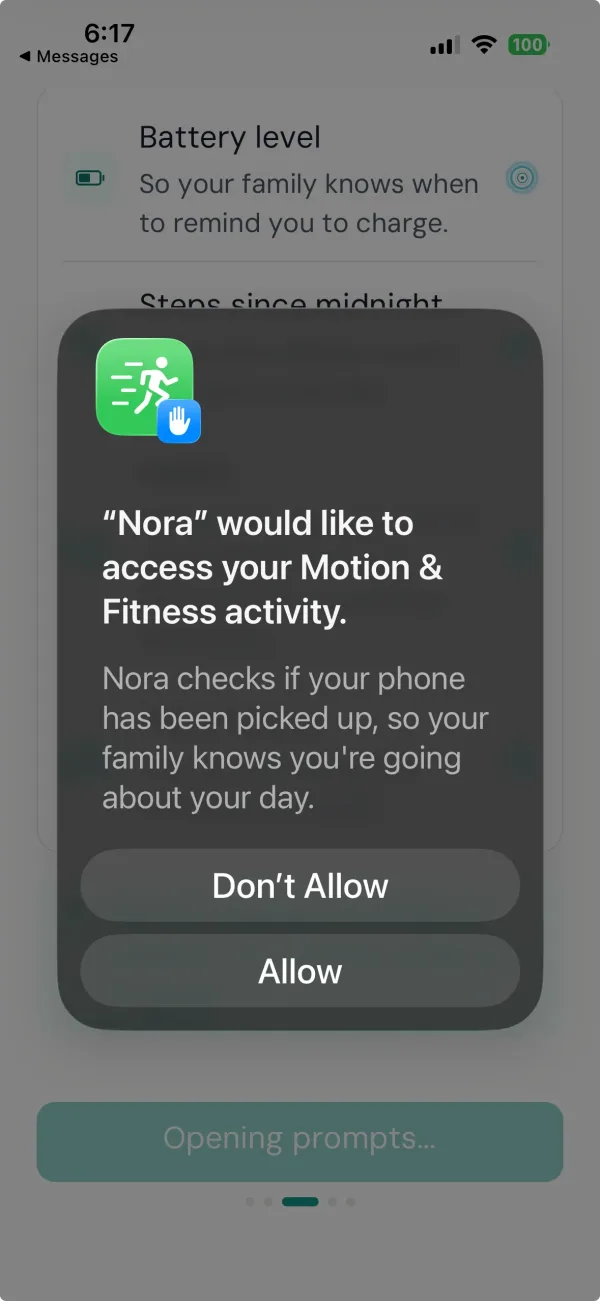
  1. Motion & fitness. Tap “Allow”.
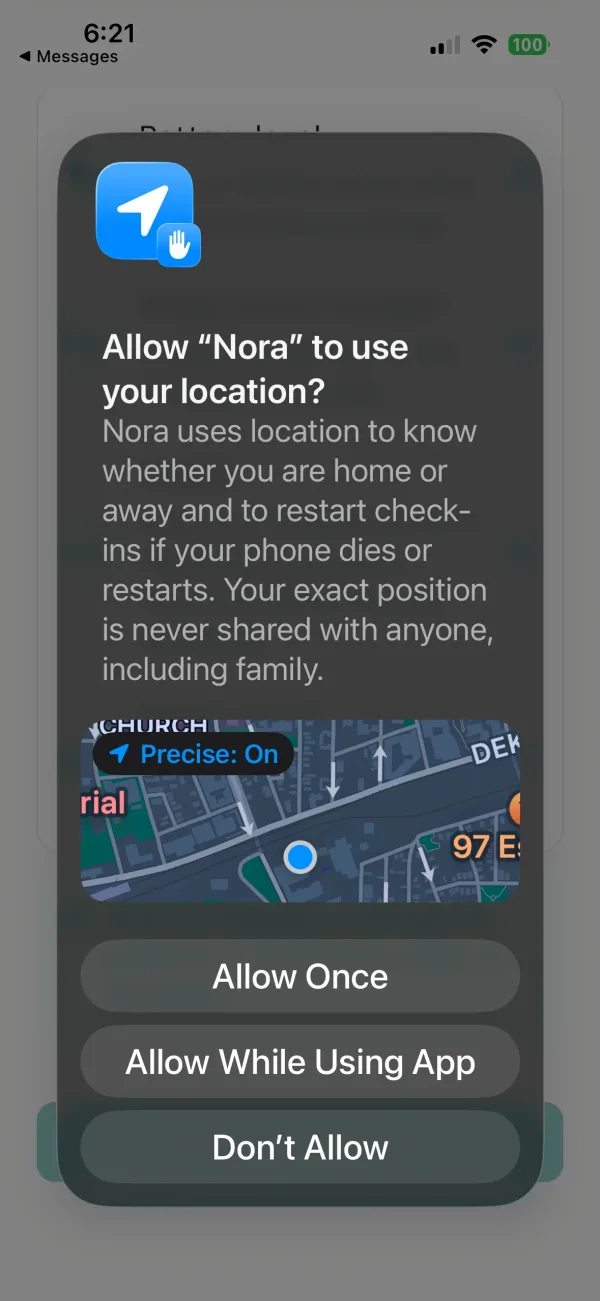
  2. Location. Tap “Allow While Using App”.
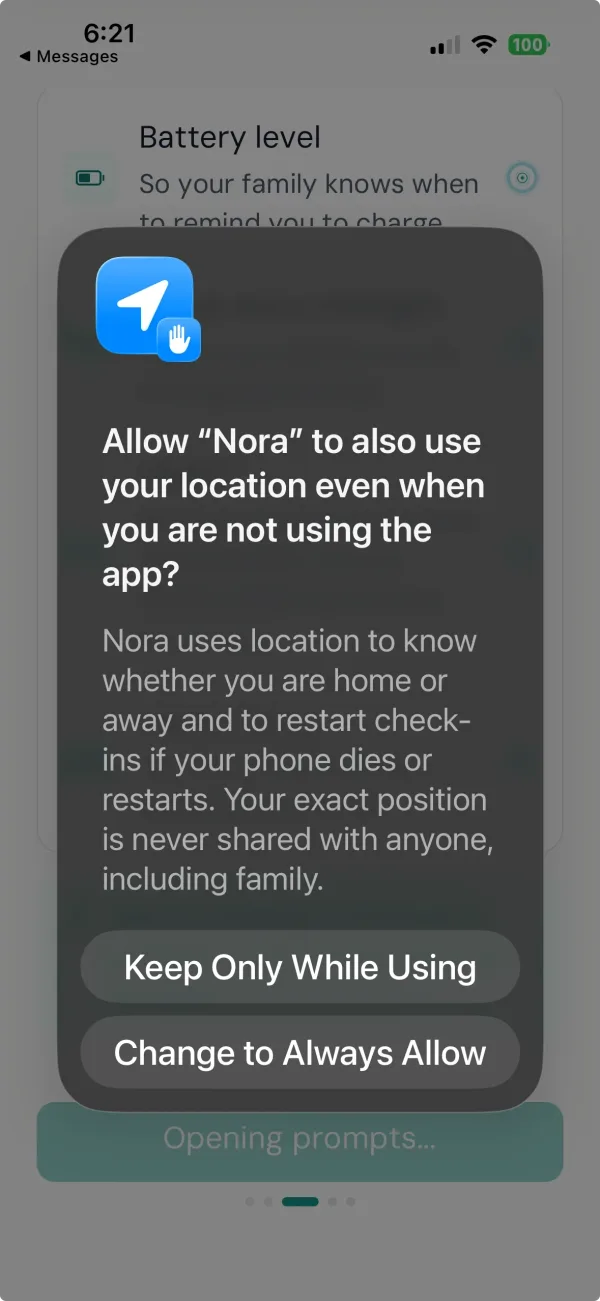
  3. A second prompt follows. Tap “Change to Always Allow”. Nora doesn't follow where they go — “Always” only lets it tell home from away, and check in while the phone is locked.
The iPhone prompt asking to allow motion and fitness activity.
Motion & fitness · “Allow”
The first location prompt, with Allow While Using App.
Location · “Allow While Using App”
The second location prompt, offering Change to Always Allow.
Location · “Change to Always Allow”
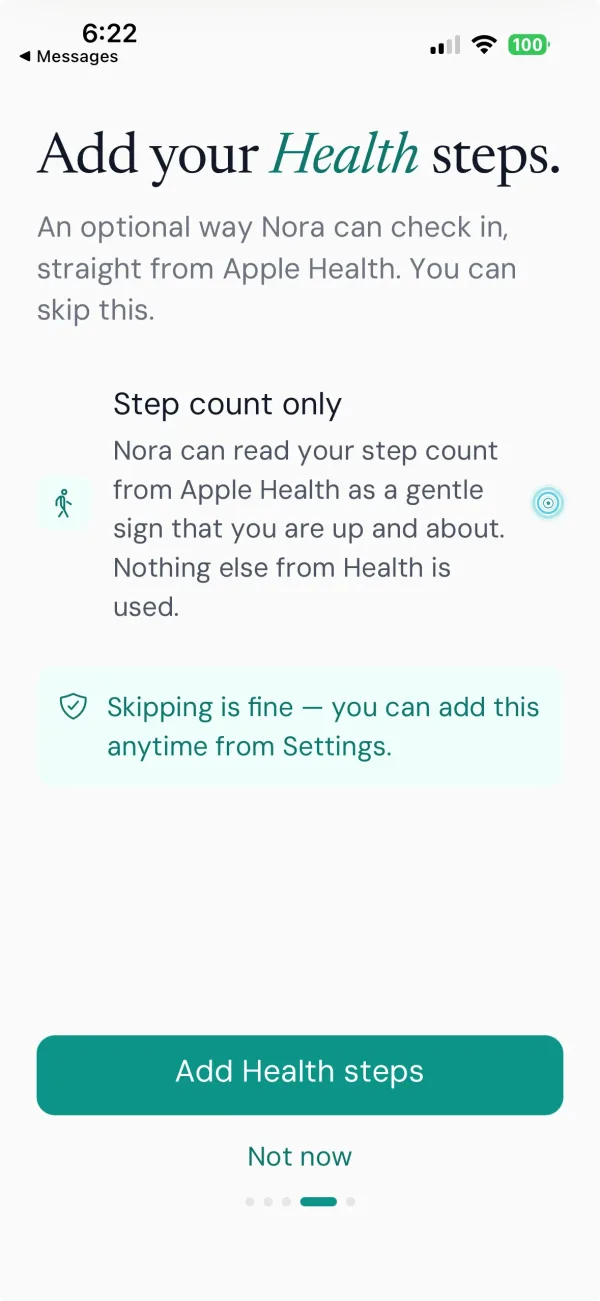
  1. Add your Health steps. Tap “Add Health steps”.
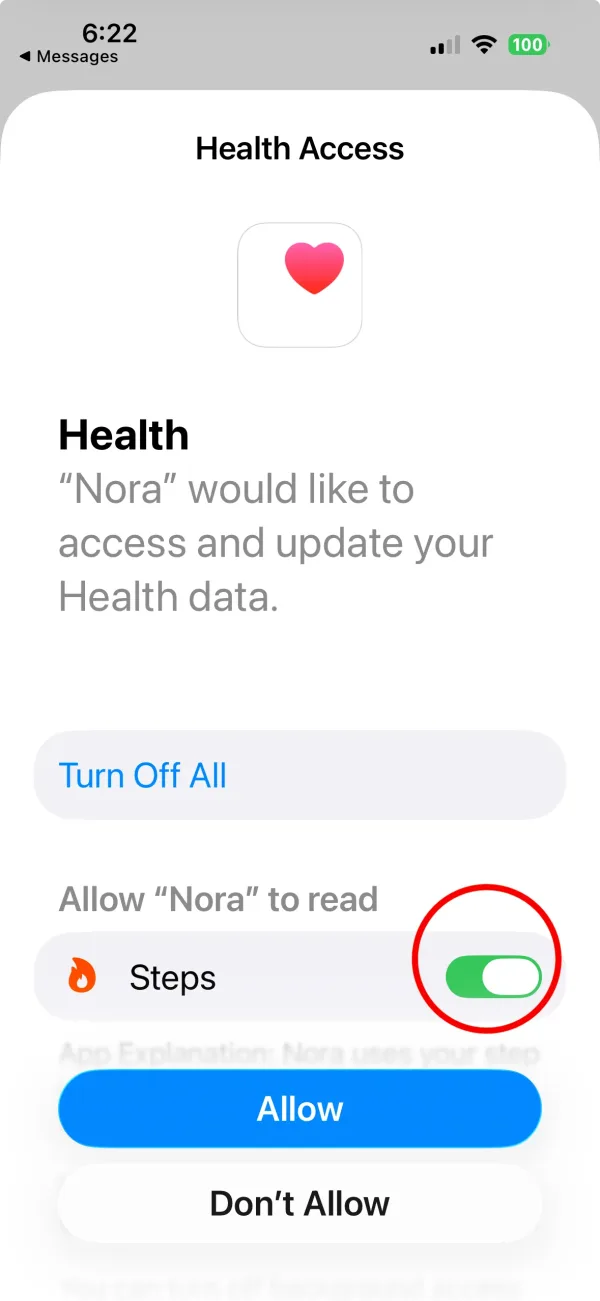
  2. Turn on Steps, then tap “Allow”.
  3. Tap “Next”. You'll land on Nora's home screen.
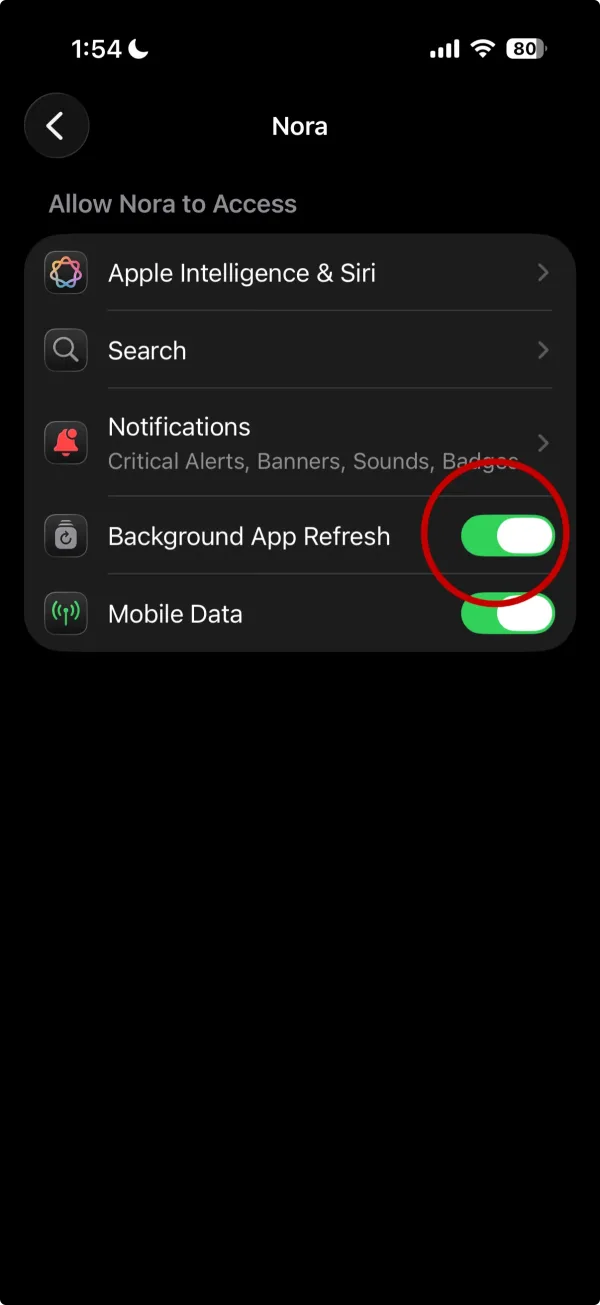
  4. Last, open Settings, scroll down to Nora, and make sure Background App Refresh is on. Then tell your loved one: “Just leave Nora alone. No need to swipe it closed.”
Nora's Add your Health steps screen with the Add Health steps button.
Health steps · “Add Health steps”
The Health access sheet with the Steps toggle turned on and the Allow button.
Health access · toggle Steps, Allow
iPhone Settings for Nora, with Background App Refresh switched on.
Settings → Nora · Background App Refresh on

Your loved one is live on Nora.

Back on your phone, their name is on your dashboard. It updates within a few minutes.

If something snags

Troubleshooting.

Not here? Email jeremy@hellonora.io.

01I can't find TestFlight in the App Store

The phone needs iOS 16 or later. Check: Settings → General → About → Software Version. If it's below 16, email jeremy@hellonora.io.

02My loved one doesn't know their Apple ID password

Try Face ID or Touch ID first — the App Store usually accepts it instead. Otherwise, tap “Forgot password?” when asked, or go to iforgot.apple.com to reset it.

03The invite link says “This beta is full” or “Link expired”

Email jeremy@hellonora.io for a fresh invite.

04The invite link opens in a browser instead of TestFlight

TestFlight isn't installed yet. Go back to Section 5 and install it first, then tap the link again.

05Nora says “Location: While Using App” instead of “Always”

On their phone: Settings → scroll down to Nora → Location → “Always”.

06My loved one accidentally denied a permission

On their phone: Settings → scroll down to Nora → turn on whatever was denied.

07The dashboard still says “Getting set up”

Give it 10 minutes. Then, on their phone: check it has Wi-Fi or cellular, open Nora once, and check Settings → General → Background App Refresh is on, and on for Nora. It's fine if they swiped Nora closed — just open it again.

08I'm not getting notifications on my phone

On your phone: Settings → Nora → Notifications → “Allow Notifications” on. Also check Do Not Disturb or Focus isn't blocking Nora.